
Microsoft Intune Suite Now Included in M365 E3 & E5 — What Changes from July 2026
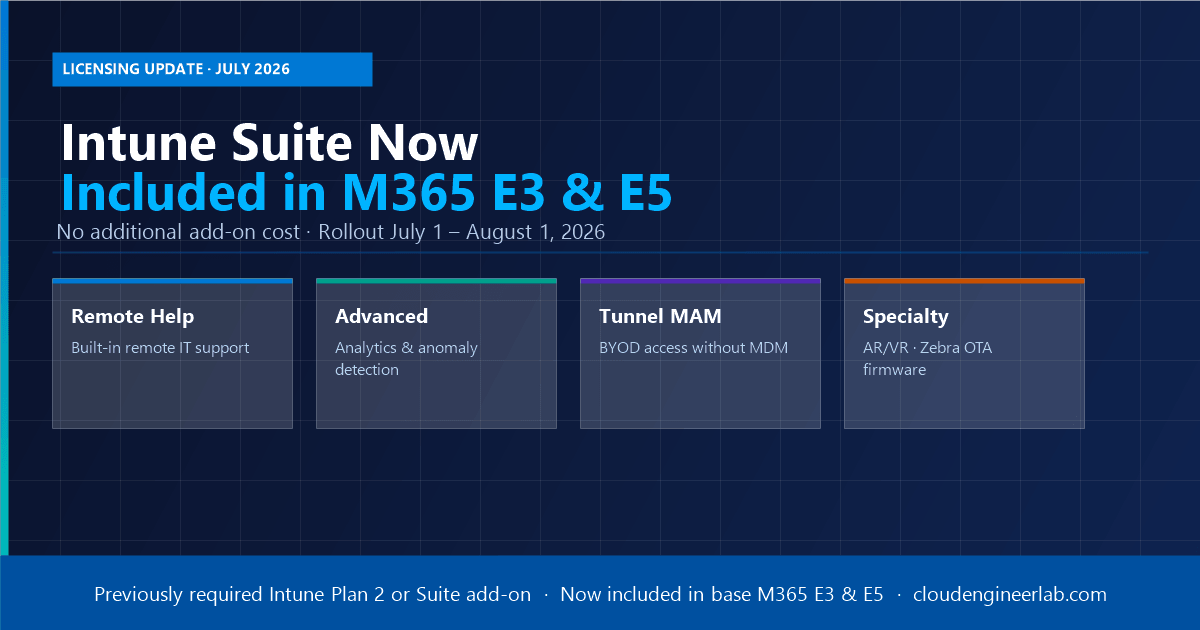
From July 1, 2026, Microsoft bundles Intune Suite capabilities — Remote Help, Advanced Analytics, Plan 2, and Tunnel for MAM — directly into M365 E3 and E5 at no extra cost.
If you manage Microsoft 365 in an enterprise environment, July 2026 brings one of the most significant Intune licensing changes in years. Starting July 1, 2026, Microsoft is bundling advanced Intune Suite capabilities directly into Microsoft 365 E3 and E5 plans — at no additional add-on cost. Rollout continues across tenants through August 1, 2026.
This means features that previously required a separate Intune Suite or Intune Plan 2 add-on are now part of what your organisation already pays for.
This guide covers exactly what is included, how each feature works, and what your IT team should do right now.
What Is Changing — The Headline
Previously, getting capabilities like Remote Help, Advanced Analytics, or Tunnel for MAM required purchasing the Intune Suite add-on (approximately £10–12/user/month). From July 2026, these capabilities move into the base M365 E3 and E5 SKUs.
Rollout Timeline
July 1, 2026 — Feature availability begins for eligible tenants. August 1, 2026 — Full rollout completes across all qualifying tenants. No action required to receive the features — they appear automatically in your Intune admin centre once your tenant is updated.
What Is Now Included — SKU Breakdown
Microsoft 365 E3 (and EMS E3)
| Feature | What It Does | Previously Required |
|---|---|---|
| Intune Remote Help | Built-in remote assistance for IT support | Intune Suite add-on |
| Advanced Analytics | Deeper device reporting and anomaly detection | Intune Suite add-on |
| Intune Plan 2 | Tunnel for MAM, specialty device management, OTA firmware | Intune Plan 2 add-on |
Microsoft 365 E5 (and EMS E5)
E5 tenants receive everything in the E3 bundle above, plus all existing E5 entitlements. Organisations already on E5 will find these capabilities appear without any licensing change.
Feature Deep Dive
Intune Remote Help
Remote Help is Microsoft's native remote assistance solution built directly into Intune. Before this change, IT teams either paid for the Intune Suite to access it, or relied on third-party tools like TeamViewer, AnyDesk, or built-in Quick Assist.
How Remote Help Works
Step 1: IT admin initiates a session
From the Intune admin centre, the helpdesk technician navigates to the device record and launches a Remote Help session. The platform generates a unique session code.
Step 2: End user accepts the request
The end user receives a notification on their device asking them to allow the session. They confirm and the connection is established — no third-party software installation required.
Step 3: IT admin assists
The technician can view the screen (view-only mode) or take full control of the device depending on the permissions configured. For elevated tasks, Remote Help supports UAC elevation during the session.
Step 4: Session is logged
Every Remote Help session — who initiated it, which device, start and end time, and actions taken — is captured in Intune audit logs. This is critical for compliance and helpdesk reporting.
Remote Help Capabilities
| Capability | Details |
|---|---|
| Full remote control | Technician takes control of the remote device |
| View-only mode | Technician observes without controlling |
| UAC elevation support | Elevated tasks during session without local admin password |
| Unattended sessions | Support unattended devices (servers, kiosks) |
| Chat during session | Built-in chat alongside screen share |
| Audit logging | All sessions captured in Intune audit logs |
| Role-based access | Helpdesk roles can be scoped — who can help whom |
| Cross-platform | Windows and macOS support |
Replace Third-Party Tools
If your organisation pays for TeamViewer Business or AnyDesk for helpdesk support, Remote Help now covers the same use case natively in Intune. Review your third-party remote support contracts — you may be able to cancel them.
Advanced Analytics
Advanced Analytics extends the default Intune reporting with deeper device intelligence, anomaly detection, and proactive insights. Where standard Intune reports tell you what is happening, Advanced Analytics helps you understand why and predict what will happen next.
What Advanced Analytics Adds
| Capability | What It Gives You |
|---|---|
| Anomaly detection | Flags unusual patterns — a device that suddenly has 5× more app crashes or 3× more policy failures |
| Battery health insights | Predicts which devices are approaching battery failure before users complain |
| Resource performance scoring | CPU, RAM, and disk metrics with trend analysis per device and per model |
| Startup performance | Time-to-productivity scores — how long devices take from power-on to usable state |
| Work from anywhere reports | Connectivity quality and reliability metrics for remote workers |
| Custom reports | Build and export tailored device health dashboards |
Endpoint Analytics vs Advanced Analytics
Standard Intune includes basic Endpoint Analytics. Advanced Analytics layers AI-driven anomaly detection, predictive battery insights, and richer drill-down reporting on top of the base telemetry. They use the same data pipeline — Advanced Analytics is an enhanced view of what Intune already collects.
Using Advanced Analytics in Practice
A practical example: your helpdesk receives 20 support tickets in a week from users in the Finance department reporting slow login times. Without Advanced Analytics, you open each ticket individually. With it:
- The anomaly detection flags a spike in startup time scores across 18 devices, all running a specific Intune configuration profile revision
- The drill-down identifies that a new font package deployment is adding 40 seconds to logon
- You roll back the deployment from the Intune console and the startup scores normalise within 24 hours
That is the kind of proactive, data-driven support Advanced Analytics enables.
Intune Plan 2 — What It Unlocks
Intune Plan 2 is the tier that sits above the standard Plan 1 included in M365 E3. It is now included in E3 as of July 2026. Here are the key capabilities it adds.
Tunnel for MAM (Mobile Application Management)
Microsoft Tunnel creates a secure VPN connection from a managed app on a mobile device to your corporate network — without requiring the device to be enrolled in MDM (full mobile device management).
This is the critical distinction:
| Scenario | What You Need |
|---|---|
| Full device enrolled in Intune MDM, access company resources | Tunnel for MDM (available in Plan 1) |
| Personal device (BYOD), only the work app needs access | Tunnel for MAM (Plan 2 — now included in E3) |
Step 1: Deploy the Microsoft Tunnel gateway
A Linux server (on-premises or in Azure) runs the Tunnel gateway server. It acts as the VPN endpoint that apps connect to.
Step 2: Configure MAM policies in Intune
Create an App Protection Policy for iOS or Android that includes the Microsoft Tunnel configuration. Define which apps use the tunnel — typically Microsoft 365 apps or your internal line-of-business apps.
Step 3: User installs Microsoft Defender
Microsoft Defender on the mobile device acts as the VPN client for Tunnel for MAM. No additional VPN client needed.
Step 4: App connects transparently
When the user opens an app governed by the MAM policy, the Tunnel connection activates automatically and routes corporate traffic through the secure gateway. The user's personal apps continue to use the normal internet connection.
BYOD Without Full Enrollment
Tunnel for MAM is the answer to "how do we let contractors and personal devices access our internal SharePoint without enrolling their private phone into MDM." The device is never fully managed — only the specific work apps are protected and tunnelled.
Specialty Device Management
Plan 2 (now in E3) supports specialty device categories beyond standard Windows, iOS, Android, and macOS:
| Device Type | Examples | Use Case |
|---|---|---|
| AR/VR headsets | Microsoft HoloLens 2, Meta Quest for Business | Field service, manufacturing, healthcare |
| Industrial handhelds | Zebra TC-series, Honeywell devices | Warehouse, logistics, retail |
| Digital signage | Windows-based kiosks and displays | Reception, retail, wayfinding |
| Ruggedised laptops | Panasonic Toughbook, Dell Latitude Rugged | Field operations, public safety |
These devices can now be enrolled, configured, and monitored in the same Intune portal as your standard fleet — single pane of glass management across all device categories.
Over-the-Air (OTA) Firmware Updates — Zebra and Others
One of the most operationally powerful Plan 2 capabilities for organisations running industrial devices is OTA firmware management.
For Zebra devices (the most widely deployed rugged Android handhelds in logistics and retail), Intune Plan 2 integrates with Zebra's Firmware Over the Air (FOTA) service:
Step 1: Connect Zebra FOTA to Intune
In the Intune admin centre, connect your Zebra FOTA account under Android Device Management. Intune discovers all enrolled Zebra devices and their current firmware versions.
Step 2: Create a firmware update policy
Define which Zebra device models should be updated, which firmware version to deploy, and the rollout schedule — staggered by site, shift, or device group to avoid operational disruption.
Step 3: Firmware deploys during maintenance windows
Devices receive the firmware update during configured maintenance windows (typically overnight or shift changes). The update is silent and automatic.
Step 4: Monitor rollout in Intune
The firmware update report in Intune shows per-device status — pending, downloading, applied, or failed — across your entire Zebra fleet from a single dashboard.
This replaces manual firmware update processes that previously required field technicians to update devices one-by-one or complex SCCM/WSUS workarounds.
What This Means for Your Organisation
Cost Impact
| Scenario | Previous Monthly Cost | From July 2026 |
|---|---|---|
| M365 E3 + Remote Help + Advanced Analytics + Plan 2 | E3 base + ~£10–12/user add-on | E3 base only |
| M365 E5 with Intune Suite | E5 base + add-on | E5 base only |
Organisations that have already purchased the Intune Suite add-on separately should review their licensing agreements. In many cases, the add-on cost can be removed from renewal — confirm with your Microsoft licensing partner.
Do You Need to Do Anything?
No Action Required for Feature Activation
The Intune Suite capabilities appear automatically in your tenant once Microsoft completes the rollout to your organisation. You do not need to assign new licenses or make any admin centre changes. You will see new options appear in:
- Intune admin centre → Tenant administration → Remote Help
- Intune admin centre → Reports → Endpoint Analytics → Advanced Analytics
- Intune admin centre → Tenant administration → Microsoft Tunnel
Recommended Actions for IT Teams
Step 1: Verify feature availability in your tenant
After August 1, 2026, check your Intune admin centre for the new capabilities. If they are not visible, verify your licence assignment in the Microsoft 365 admin centre under Billing → Licences.
Step 2: Pilot Remote Help
Assign the Remote Help Administrator role to a subset of your helpdesk team and run a pilot. Test view-only and full-control sessions. Review session logs in the Intune audit log. Document your internal runbook for when to use Remote Help vs other tools.
Step 3: Enable Advanced Analytics
In Intune → Reports → Endpoint Analytics, enable data collection if not already running. Allow 24–48 hours for baseline data to populate, then review the anomaly detection and battery health reports for your fleet.
Step 4: Evaluate Tunnel for MAM for BYOD users
If your organisation has contractors, part-time staff, or a BYOD policy, review whether Tunnel for MAM can replace your current approach (full MDM enrollment or third-party VPN clients on personal devices).
Step 5: Review specialty device inventory
If your organisation uses Zebra handhelds, HoloLens, or other specialty devices not currently managed in Intune, this is the moment to enroll them. Document the device models, current firmware versions, and planned update cadence.
Step 6: Cancel redundant add-ons
Review your Microsoft licensing invoices and third-party tool subscriptions. Remote Help may replace a paid third-party remote support tool. The now-included Plan 2 features may allow removal of the Intune Suite or Plan 2 add-on at next renewal.
Updated License Map — July 2026
Here is the revised feature-to-license mapping after the July 2026 changes.
| Feature | Free | M365 E3 (Post July 2026) | M365 E5 (Post July 2026) |
|---|---|---|---|
| MDM / MAM | ❌ | ✅ | ✅ |
| Compliance policies | ❌ | ✅ | ✅ |
| App deployment | ❌ | ✅ | ✅ |
| LAPS (cloud) | ❌ | ✅ | ✅ |
| Conditional Access | ❌ | ✅ (P1) | ✅ (P2) |
| SSPR | ❌ | ✅ (P1) | ✅ (P2) |
| PIM / PAM | ❌ | ❌ (P1 only) | ✅ (P2) |
| Identity Protection | ❌ | ❌ | ✅ (P2) |
| Remote Help | ❌ | ✅ New | ✅ New |
| Advanced Analytics | ❌ | ✅ New | ✅ New |
| Tunnel for MAM | ❌ | ✅ New | ✅ New |
| Specialty device mgmt | ❌ | ✅ New | ✅ New |
| OTA firmware (Zebra) | ❌ | ✅ New | ✅ New |
| Cloud PKI | ❌ | Suite only | Suite only |
Cloud PKI Remains Suite-Only
Microsoft Cloud PKI — the fully managed cloud certificate authority for issuing device and user certificates — is NOT part of this July 2026 inclusion. It remains in the full Intune Suite add-on. If your organisation uses or plans to use Cloud PKI, you still need the Intune Suite separately.
Summary
The July 2026 Intune licensing update is genuinely significant for enterprise IT teams. Three previously paid capabilities — Remote Help, Advanced Analytics, and Intune Plan 2 (including Tunnel for MAM, specialty device management, and OTA firmware updates) — move into the M365 E3 and E5 base plans.
Key takeaways:
- Remote Help replaces the need for third-party remote assistance tools for Intune-managed Windows and macOS devices.
- Advanced Analytics adds AI-driven anomaly detection and predictive device health reporting — valuable for large fleets.
- Tunnel for MAM enables BYOD scenarios where only work apps tunnel to corporate resources, without full device enrollment.
- Specialty device management brings AR/VR headsets, rugged handhelds, and industrial devices under the same Intune umbrella as your standard fleet.
- OTA firmware management for Zebra and compatible devices eliminates manual firmware update operations.
The biggest immediate action: if you have been paying for the Intune Plan 2 or Intune Suite add-on, speak to your Microsoft licensing partner before your next renewal. You may no longer need that add-on for the features covered by this change.
Have questions about how this affects your specific licensing or deployment? Drop a comment below — I am happy to help you work through the implications for your environment.

Written by
Chetan Yamger
Cloud Engineer · AI Automation Architect · Modern Workplace Consultant
Cloud Engineer, AI Automation Architect, and Modern Workplace Consultant based in Amsterdam, Netherlands. Specializing in scalable, secure enterprise solutions with Microsoft Azure, Intune, PowerShell, and AI-driven automation using ChatGPT, Gemini, and modern LLM technologies.
Stay in the loop.
New articles, straight to you.
Deep-dive technical articles on Intune, PowerShell, and AI — no noise, no spam.
Discussion
Share your thoughts — your email stays private
Leave a comment