
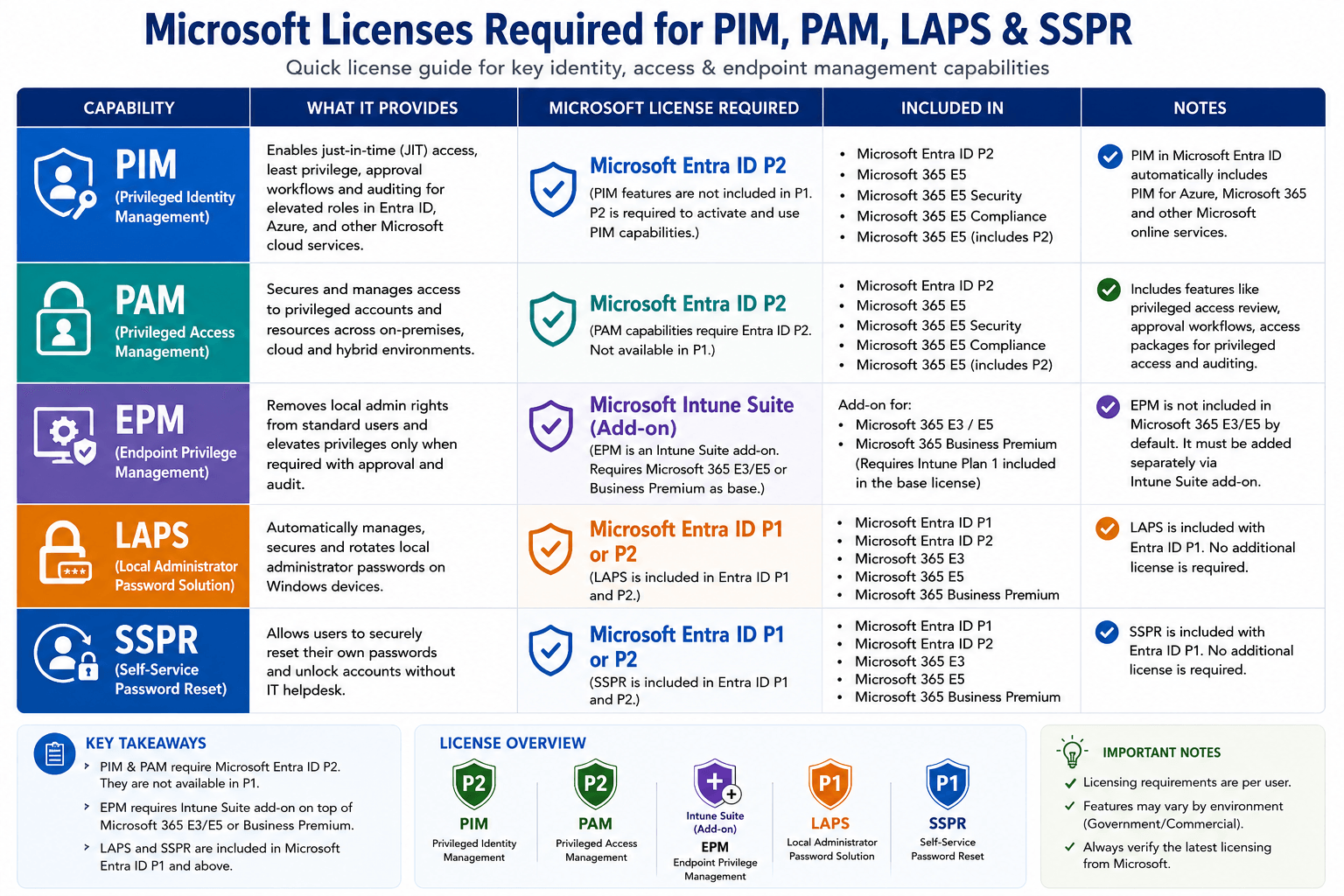
Microsoft Intune Licensing Decoded: PIM, PAM, EPM, LAPS & SSPR — P1 vs P2 Explained
Cut through the Microsoft licensing maze. Understand exactly which license unlocks PIM, PAM, EPM, LAPS, and SSPR — and how P1 vs P2 determines what your organisation can actually do.
If you have worked in an enterprise IT environment, you have almost certainly hit this wall — a feature your organisation needs is locked behind a license you do not have. Microsoft's licensing stack is deep, overlapping, and constantly evolving. The names change (Azure AD is now Entra ID), the bundles shift, and new add-ons appear every year.
This guide cuts through all of that. We will map every major security feature — PIM, PAM, EPM, LAPS, and SSPR — to the exact license that unlocks it, explain how P1 and P2 differ in practice, and show you how they all connect architecturally.
The Microsoft License Landscape — A Quick Map
Before we go feature by feature, you need to understand the two product families that matter here.
Family 1 — Microsoft Entra ID (formerly Azure AD)
This handles identity. Think users, passwords, groups, authentication methods, and conditional access.
| Tier | What it unlocks |
|---|---|
| Free / M365 Basic | Basic user accounts, MFA (authenticator app), basic SSO |
| Entra ID P1 | Conditional Access, SSPR, Dynamic Groups, Hybrid join, Cloud App Discovery, Windows Hello for Business management |
| Entra ID P2 | Everything in P1 + Identity Protection, PIM (Privileged Identity Management), Access Reviews, Entitlement Management |
Family 2 — Microsoft Intune
This handles devices and endpoints. Think MDM, MAM, compliance policies, and endpoint configuration.
| Tier | What it unlocks |
|---|---|
| Intune Plan 1 | MDM/MAM, compliance policies, app deployment, configuration profiles, LAPS for Entra-joined devices |
| Intune Plan 2 | Plan 1 + Endpoint Privilege Management (EPM), Advanced Analytics, Tunnel for MAM |
| Intune Suite | Plan 2 + Cloud PKI, Remote Help, Advanced Endpoint Analytics, Specialty device management |
How They Bundle Into M365
| SKU | Entra ID | Intune |
|---|---|---|
| Microsoft 365 Business Premium | P1 | Plan 1 |
| Microsoft 365 E3 / EMS E3 | P1 | Plan 1 |
| Microsoft 365 E5 / EMS E5 | P2 | Plan 1 |
| Microsoft 365 E5 Security add-on | P2 | — |
| Intune Plan 2 add-on | — | Plan 2 |
| Intune Suite add-on | — | Suite |
Naming Note
Microsoft renamed Azure AD to Microsoft Entra ID in 2023. The P1 and P2 license tiers are now called Entra ID P1 and Entra ID P2, but most admin portals still show both names. They are the same product.
Architecture — How the Licenses Layer Together
The diagram below shows how Entra ID and Intune licensing layers sit on top of each other, and which features live at each level.
Each layer depends on the one below it. You cannot enforce Conditional Access policies (P1) for a device that is not enrolled in Intune (Plan 1). You cannot use EPM (Plan 2) without Intune Plan 1. And PAM/PIM (P2) requires P1 as a foundation.
SSPR — Self-Service Password Reset
What it does
SSPR lets users reset their own passwords from the login screen or a web portal — without calling the helpdesk. They verify their identity via a secondary method (authenticator app, phone call, email, security questions) and reset immediately.
How it works
Step 1: Admin enables SSPR in Entra ID
In the Entra admin centre, SSPR is toggled on for all users or a selected group. Admin configures which verification methods are allowed.
Step 2: User registers verification methods
Users visit aka.ms/ssprsetup and register their phone number, authenticator app, or backup email. Combined registration shares this with MFA setup.
Step 3: User resets password
At the Windows login screen or aka.ms/sspr, the user clicks "Forgot my password", completes verification, and sets a new password. For cloud-only accounts, the change is instant.
Step 4 (Hybrid only): Password Writeback
For organisations with on-premises Active Directory, Entra Connect (Azure AD Connect) writes the new password back to the on-prem domain so the user can log into local resources too.
License Requirement
| Scenario | Minimum License |
|---|---|
| Cloud-only users reset Entra ID password | Entra ID P1 |
| Hybrid users — password written back to on-prem AD | Entra ID P1 + Azure AD Connect |
| Admin accounts reset password | Free (always available for admins) |
| SSPR registration enforced via Conditional Access | Entra ID P1 |
Common Mistake
SSPR alone does not enable on-premises password reset. You also need Azure AD Connect with the Password Writeback feature enabled. Without it, the cloud password changes but the domain password stays the same — and users cannot log into domain-joined machines.
PAM — Privileged Access Management
What is PAM?
PAM (Privileged Access Management) is a cybersecurity strategy and discipline focused on controlling, monitoring, and auditing access to an organisation's most sensitive systems and accounts — specifically the accounts that hold elevated or administrative privileges.
Think of it this way: in any organisation, most users have standard accounts that can read emails and open documents. But a small number of accounts — IT admins, security engineers, database administrators — have the power to delete data, change configurations, install software, or access every user's mailbox. These are privileged accounts. If any one of them is compromised, the damage can be catastrophic.
PAM exists to make sure that:
- Privileged access is granted only when needed and revoked immediately after
- Every privileged action is logged and audited
- The blast radius of a compromised account is minimised
Why PAM Matters
Without PAM, the typical enterprise looks like this:
- IT admins have permanent Global Admin or Domain Admin accounts used every day
- Those accounts are used for both privileged tasks (changing firewall rules) and routine tasks (checking email)
- A phishing email that captures the admin's credentials gives an attacker permanent, unlimited access
- There is no audit trail of what the account did once compromised
With PAM in place:
- Admin roles are held only during the specific window they are needed
- Every access request requires justification and optionally manager approval
- All privileged sessions are logged — what was accessed, changed, or deleted
- A compromised account has zero standing privilege and cannot do admin-level damage without triggering an approval workflow
Core Principles of PAM
| Principle | What it means |
|---|---|
| Least Privilege | Users and accounts have only the minimum permissions needed for their specific task |
| Just-in-Time (JIT) Access | Elevated access is granted temporarily and expires automatically |
| Zero Standing Privilege | No account holds permanent admin rights — privileges are always time-bound |
| Full Auditability | Every privileged action is recorded with who, what, when, and why |
| Separation of Duties | No single person can both request and approve their own privileged access |
PAM in the Microsoft Ecosystem
Microsoft implements PAM through Privileged Identity Management (PIM) in Microsoft Entra ID. In the Microsoft world, when an organisation says they have PAM, they almost always mean they have enabled PIM.
PAM vs PIM — One Line Summary
PAM is the security strategy. PIM is the Microsoft product that implements that strategy inside Entra ID. Every time you enable PIM in your tenant, you are implementing PAM.
PIM — Privileged Identity Management
What it is
PIM (Privileged Identity Management) is a Microsoft Entra ID feature that controls who has access to powerful admin roles, when they have it, and for how long. It is the Microsoft implementation of the broader concept of Privileged Access Management (PAM).
Without PIM, admin roles are permanent — a user assigned as Global Administrator has that role 24 hours a day, every day of the year. If that account is ever compromised, an attacker has full, permanent elevated access to your entire tenant.
With PIM, admin roles are just-in-time (JIT). A user is made eligible for a role but does not hold it actively. When they need admin access, they request activation, state a reason, complete MFA, and receive the role for a limited time window (e.g., 2 hours). When the window expires, the role is automatically removed.
Why PIM matters
The number one cause of catastrophic Microsoft 365 tenant breaches is standing admin access. An account with a permanent Global Admin role is a permanent high-value target. PIM eliminates standing access entirely.
PIM vs PAM — Clarified
| Term | What it means |
|---|---|
| PAM (Privileged Access Management) | The broad security strategy of controlling and monitoring privileged access |
| PIM (Privileged Identity Management) | Microsoft's specific Entra ID feature that implements PAM in your Microsoft tenant |
In Microsoft's ecosystem, when you enable PAM, you are enabling PIM. They refer to the same feature — PIM is simply the product name Microsoft uses in the Entra portal.
How PIM Works
Step 1: Admin assigns eligible role
In the Entra admin centre under PIM, a Global Admin makes a user eligible (not permanently assigned) for a role such as Intune Administrator, Exchange Administrator, or Global Reader.
Step 2: User activates the role when needed
The user visits the PIM portal (My Roles), finds their eligible role, clicks Activate, enters a business justification, and completes MFA. The system grants the role for the configured duration (e.g., 1–8 hours).
Step 3: Approval (optional but recommended)
If the role is configured to require approval, the request goes to a designated approver — usually a security lead or IT manager — who approves or denies via the Entra portal or email notification.
Step 4: Role expires automatically
After the configured window, the role assignment expires with no action needed. The user returns to a standard, non-privileged account automatically.
Step 5: Full audit trail
Every activation, approval, denial, and expiry is captured in PIM audit logs — who activated what, when, for how long, and why. This is invaluable for compliance and incident investigation.
Key PIM Capabilities
| Capability | What it does |
|---|---|
| Just-in-time access | Roles granted only when needed, for a defined window |
| Approval workflows | Require manager or security team sign-off before elevation |
| MFA on activation | Forces MFA at role activation even for already-signed-in users |
| Time-bound access | Maximum activation window configurable per role (e.g. 1–8 hours) |
| Access reviews | Periodic re-validation — does this person still need this role? |
| Standing access alerts | Flags when roles are permanently assigned instead of eligible |
| Azure resource roles | Works for Azure subscriptions and resource groups, not just Entra roles |
License Requirement
| Scenario | Minimum License |
|---|---|
| PIM for Entra ID roles (Global Admin, Intune Admin, etc.) | Entra ID P2 |
| PIM for Azure resource roles (Owner, Contributor, etc.) | Entra ID P2 |
| Access Reviews | Entra ID P2 |
| Entitlement Management | Entra ID P2 |
No P2, No PIM
PIM is a hard P2-only feature — there is no lower-tier workaround. If your organisation has M365 E3 (which includes only P1), you do not have PIM. You need M365 E5, EMS E5, or the standalone Entra ID P2 add-on to enable it.
LAPS — Local Administrator Password Solution
What it is
Every Windows device has a local administrator account. By default, organisations often set this to the same password across all machines — a catastrophic security risk. If an attacker compromises one machine, they have the local admin password for every machine in the fleet.
LAPS solves this by automatically rotating the local administrator password to a unique, random password per device, storing it securely, and making it retrievable only by authorised IT staff.
Two Versions of LAPS
Legacy LAPS (the old on-premises version):
- Free download from Microsoft
- Requires on-prem Active Directory
- Stores passwords in AD attributes
- Requires Group Policy for deployment
- Does not support Entra ID joined (cloud-only) devices
Windows LAPS (modern, built into Windows 10/11 and Server 2022):
- Built into the OS (no separate agent needed)
- Supports Entra ID joined, Hybrid joined, and on-prem AD devices
- Managed through Intune or Group Policy
- Passwords stored in Entra ID or on-prem AD (your choice)
- Password history, encrypted storage, and automatic rotation
How Windows LAPS Works (Intune-managed)
Step 1: Admin creates LAPS policy in Intune
In Intune → Endpoint Security → Account Protection, create a LAPS policy. Define: which account name to manage, password length, rotation interval (e.g. every 7 days), and where to store the password (Entra ID or on-prem AD).
Step 2: Policy deploys to device
The device receives the policy via Intune MDM channel. Windows LAPS service activates on the device.
Step 3: LAPS generates and stores a unique password
Windows LAPS generates a cryptographically random password for the local admin account and uploads it to Entra ID (or AD). The password on each device is different.
Step 4: IT admin retrieves password when needed
In the Intune portal or Entra ID portal, an authorised admin finds the device and copies the current local admin password. After use, LAPS can be triggered to rotate it immediately.
License Requirement
| Scenario | Minimum License |
|---|---|
| Windows LAPS managed via Intune (Entra joined devices) | Intune Plan 1 |
| Windows LAPS for Hybrid Entra joined devices | Intune Plan 1 + Entra ID P1 |
| Legacy LAPS (on-prem AD only, Group Policy) | Free (no license needed) |
| LAPS reporting in Intune | Intune Plan 1 |
Windows LAPS is available on Windows 10 20H2 and later (with the April 2023 cumulative update), Windows 11, and Windows Server 2019+. Older OS versions require the legacy LAPS agent.
EPM — Endpoint Privilege Management
What it is
One of the most common enterprise problems: standard users need to run specific applications as administrator, but you do not want to make them local admins.
Traditional approaches — giving users local admin rights, or having IT run installers manually — are either insecure or operationally expensive. Endpoint Privilege Management (EPM) solves this cleanly.
EPM lets you define rules in Intune that allow a standard user to elevate specific apps to run as administrator, on demand, with logging. The user never needs local admin rights on the machine. They right-click a specific approved application, choose "Run with elevated access", optionally provide a business justification, and the app runs elevated. Everything else on the machine runs as a standard user.
How EPM Works
Step 1: Admin creates elevation rules in Intune
In Intune → Endpoint Security → Privilege Management, create policies that define which applications can be elevated. Rules can match by file hash, certificate, publisher, or path.
Step 2: Policy deploys to endpoint
Devices receive the EPM policy via Intune MDM. The EPM client component activates on Windows (Windows 10 22H2+ or Windows 11 required).
Step 3: User requests elevation
When a standard user right-clicks an application covered by an EPM rule, they see a "Run with elevated access" option. They can click it, optionally enter a justification, and the app launches as administrator.
Step 4: Audit and reporting
Every elevation event — application name, user, device, timestamp, justification — is logged and visible in Intune reports. Admins can review elevation patterns and tighten or expand rules accordingly.
EPM Elevation Types
| Type | How it works | Use case |
|---|---|---|
| Automatic elevation | App always runs elevated, no user prompt | Approved background tools |
| User-confirmed elevation | User clicks to elevate, no justification needed | Common approved apps |
| User-justified elevation | User must type a reason before elevation | Regulated or audited apps |
| Support-approved elevation | User requests → IT approves in real-time | Rarely needed, high-value apps |
| Deny | Specific apps are always blocked from elevation | Known unwanted tools |
License Requirement
| Scenario | Minimum License |
|---|---|
| Endpoint Privilege Management (EPM) | Intune Plan 2 or Intune Suite |
| EPM reporting and analytics | Intune Plan 2 or Intune Suite |
| Support-approved elevation (real-time approval) | Intune Plan 2 or Intune Suite |
EPM is NOT in Plan 1
EPM is one of the few Intune features that requires a Plan 2 or Suite upgrade. It is not available in the standard Intune Plan 1 that comes with M365 E3. The Intune Plan 2 add-on is approximately £8–10/user/month on top of your existing plan.
P1 vs P2 — The Full Comparison
Here is everything in one place. This is the table to bookmark.
| Feature | Free | P1 | P2 | Intune Plan 1 | Intune Plan 2 |
|---|---|---|---|---|---|
| Basic MFA | ✅ | ✅ | ✅ | — | — |
| Conditional Access | ❌ | ✅ | ✅ | — | — |
| SSPR (cloud-only) | ❌ | ✅ | ✅ | — | — |
| SSPR with writeback | ❌ | ✅ | ✅ | — | — |
| Dynamic Groups | ❌ | ✅ | ✅ | — | — |
| WHfB PIN via Intune | — | — | — | ✅ | ✅ |
| WHfB + Conditional Access enforcement | ❌ | ✅ | ✅ | ✅ | ✅ |
| LAPS (Intune-managed) | — | — | — | ✅ | ✅ |
| LAPS (Legacy, on-prem) | ✅ | ✅ | ✅ | — | — |
| Identity Protection | ❌ | ❌ | ✅ | — | — |
| PIM / PAM | ❌ | ❌ | ✅ | — | — |
| Access Reviews | ❌ | ❌ | ✅ | — | — |
| EPM | — | — | — | ❌ | ✅ |
| Advanced Analytics | — | — | — | ❌ | ✅ |
| Cloud PKI | — | — | — | ❌ | Suite only |
| Remote Help | — | — | — | ❌ | Suite only |
How They All Work Together — A Real-World Scenario
Imagine a 500-person organisation with M365 E3 (which gives P1 + Intune Plan 1). Here is how the features combine in practice.
Day-to-day scenario: A developer's laptop.
- The developer's laptop is Entra-joined and Intune-enrolled.
- Intune Plan 1 deploys a Windows Hello for Business configuration profile. The developer sets a 6-digit PIN. From now on, their PIN unlocks a TPM-backed key — no password over the network.
- Intune Plan 1 deploys a LAPS policy. The local Administrator password is now unique to that machine and rotates every 7 days. If IT ever needs local admin access, they retrieve it from the Intune portal.
- Entra ID P1 Conditional Access requires that the device is Intune-compliant and uses WHfB authentication before accessing Outlook or SharePoint. Non-compliant or personal devices are blocked.
- Entra ID P1 SSPR lets the developer reset their own password on a Friday evening without calling the helpdesk.
What this organisation cannot do yet with E3:
- PAM/PIM — their Global Admin accounts have permanent standing access. An attacker who compromises those accounts has full tenant access indefinitely. They need P2 to fix this.
- EPM — their finance team needs to run a legacy accounting app that requires admin rights. Currently IT either runs it for them or the users are local admins. They need Intune Plan 2 to deploy EPM rules.
Upgrading path:
Choosing the Right Bundle — Quick Decision Guide
Start Here
Answer these questions to identify the licenses you need.
Do you need users to reset their own passwords? → You need Entra ID P1 (included in M365 E3 / Business Premium).
Do you need to enforce which device types can access company data? → You need Entra ID P1 (Conditional Access) + Intune Plan 1 (compliance policies).
Do you need to manage local admin passwords on every device? → You need Intune Plan 1 (Windows LAPS policy). Legacy LAPS (AD-only) is free.
Do you need to protect your admin accounts with just-in-time access? → You need Entra ID P2. This is the single most impactful security upgrade for most organisations.
Do you need standard users to run specific apps as admin without making them local admins? → You need Intune Plan 2 (EPM). Add-on to any existing Intune plan.
Summary
| Feature | Short Name | License Required |
|---|---|---|
| Self-Service Password Reset | SSPR | Entra ID P1 |
| Privileged Identity Management | PIM / PAM | Entra ID P2 |
| Local Admin Password Management | LAPS | Intune Plan 1 (cloud); Free (on-prem legacy) |
| Endpoint Privilege Management | EPM | Intune Plan 2 or Suite |
The most important takeaways:
- P1 gives you Conditional Access, SSPR, Dynamic Groups, and Hybrid join — the foundation for most enterprise security scenarios.
- P2 adds PIM/PAM, Identity Protection, and Access Reviews — these protect your most sensitive admin accounts and are the single most impactful upgrade for most organisations.
- Intune Plan 1 powers cloud-managed LAPS, compliance policies, and app deployment.
- Intune Plan 2 adds EPM — the answer to the "how do I stop making users local admins" problem.
- These licenses are additive. You can have P2 without Plan 2, or Plan 2 without P2 — they are separate product families.
If you are building a security roadmap: start with P1 (SSPR, Conditional Access, LAPS via Intune), then add P2 to eliminate standing admin access with PIM, and finally add Intune Plan 2 if EPM is needed.
Have questions about mapping these licenses to your specific environment? Drop a comment below — I am happy to help you work through the right license combination for your use case.

Written by
Chetan Yamger
Cloud Engineer · AI Automation Architect · Modern Workplace Consultant
Cloud Engineer, AI Automation Architect, and Modern Workplace Consultant based in Amsterdam, Netherlands. Specializing in scalable, secure enterprise solutions with Microsoft Azure, Intune, PowerShell, and AI-driven automation using ChatGPT, Gemini, and modern LLM technologies.
Stay in the loop.
New articles, straight to you.
Deep-dive technical articles on Intune, PowerShell, and AI — no noise, no spam.
Discussion
Share your thoughts — your email stays private
Leave a comment