
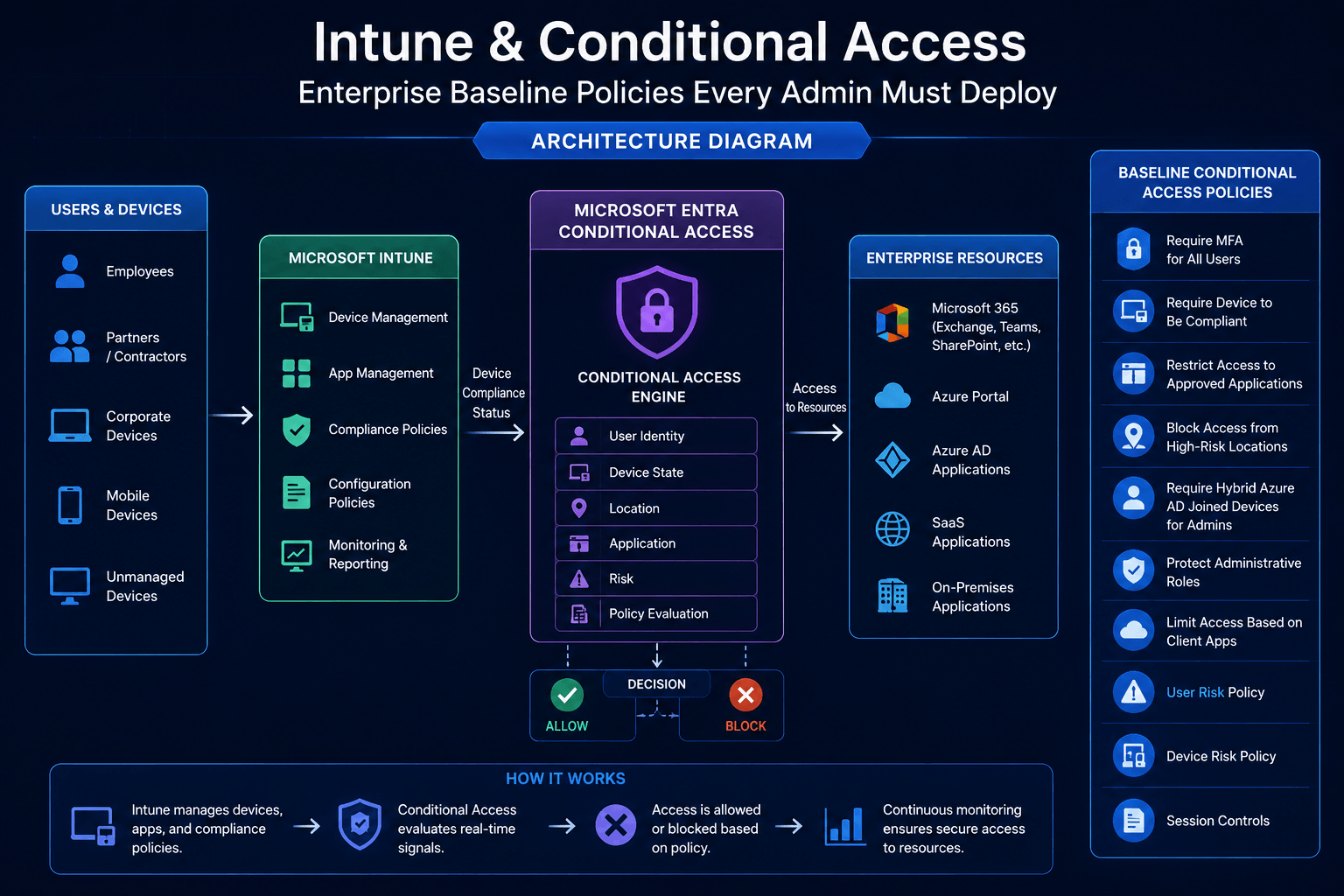
Intune & Conditional Access: Enterprise Baseline Policies Every Admin Must Deploy
A complete enterprise guide to Conditional Access baseline policies — what to deploy, what to test before you flip the switch, what can go wrong, and why getting this wrong can lock out your entire organisation.
Conditional Access is the single most powerful — and most dangerous — feature in the Microsoft security stack.
Done right, it enforces Zero Trust across every user, every device, and every application in your organisation. Done wrong, it locks out your entire workforce at 8am on a Monday morning, including the IT team trying to fix it.
I have seen both outcomes. This guide is built to make sure you only ever experience the first one.
We will cover the exact CA baseline every enterprise should have, how to safely test and deploy each policy, what to do before you touch anything, and the critical gotchas that catch even experienced admins off guard.
What is Conditional Access and Why Does It Matter?
Conditional Access (CA) is Microsoft Entra ID's policy engine that sits between a user's sign-in attempt and the resource they want to access. Before access is granted, CA evaluates a set of conditions — who is signing in, from what device, from where, with what risk level — and then enforces a grant or block decision.
Think of it as a security checkpoint at the door to every cloud application. The guard checks your identity card (Entra ID), inspects your vehicle (device compliance via Intune), checks you're not on a watchlist (Identity Protection), and only then lets you through.
Why this is critical
Without Conditional Access, a stolen password is all an attacker needs to access your entire Microsoft 365 environment — email, SharePoint, Teams, Azure, everything. CA is the primary control that stops credential theft from becoming a full breach.
How CA Fits Into the Zero Trust Model
Critical behaviour — policies run in parallel
CA policies are not evaluated sequentially. ALL policies that match the user's sign-in conditions are evaluated simultaneously. If any matching policy blocks access, the user is blocked — even if another policy would grant access. Design your policies with this in mind.
Before You Create a Single Policy — Do These First
These steps are not optional. Skip them and you risk a lockout that no CA policy can fix.
1. Create Break Glass Accounts
A break glass account (also called an emergency access account) is a cloud-only global admin account that is permanently excluded from all CA policies. It exists for one purpose: to recover your tenant if a CA misconfiguration locks out all normal admins.
Create two cloud-only accounts
In Entra ID, create two accounts with names like breakglass1@yourdomain.onmicrosoft.com and breakglass2@yourdomain.onmicrosoft.com. Use the .onmicrosoft.com domain — not your custom domain — so they work even if your domain has an issue.
Assign Global Administrator role permanently
Assign both accounts the Global Administrator role as a permanent assignment — NOT eligible in PIM. These accounts must always be active, no JIT required.
Set a long, complex, randomly generated password
Generate a 30+ character random password. Split it into two halves and store each half with two different trusted people or in two separate secure locations (e.g. a physical safe + an offline password manager). Never store it in the same place as other credentials.
Use hardware FIDO2 keys for MFA — not phone-based
Register a physical FIDO2 security key for each account. If your CA policy blocks non-phishing-resistant MFA and something goes wrong, you need a method that will still work.
Exclude from ALL CA policies — no exceptions
Every CA policy you create must have these accounts in the exclusion list. This is non-negotiable. Create a dedicated Entra ID security group called CA-Exclude-BreakGlass and add both accounts to it. Use this group as the exclusion in every policy.
Set up monitoring alerts
In Entra ID → Monitoring → Diagnostic Settings, configure an alert that fires any time either break glass account signs in. This should never happen in normal operations — any sign-in is an emergency.
Two accounts, not one
Always create two break glass accounts. If one account has a problem (password expired, account disabled, key lost), you have a fallback. With only one account, you have a single point of failure for your emergency recovery.
2. Audit Your Existing Sign-In Landscape
Before creating any CA policies, spend time understanding your current environment:
| What to audit | Why it matters |
|---|---|
| Legacy authentication clients | Blocking legacy auth (step 1 in any baseline) will break any app that cannot do modern auth — Outlook 2010, basic SMTP, older MDM tools |
| Service accounts | Automated scripts, connectors, and service accounts often cannot do MFA — they need exclusions or separate policies |
| Guest and external users | Guest accounts follow different CA rules — a policy targeting "All users" includes guests unless you exclude them |
| Named locations (trusted IPs) | Corporate IP ranges, VPN exit nodes, office IPs — used in location-based policies |
| MFA registration status | If you require MFA before everyone has registered, you lock out anyone who hasn't registered yet |
| Device compliance status | If you require a compliant device before all devices are enrolled and compliant, you block non-enrolled users |
3. Enable Report-Only Mode — Never Skip This
Every CA policy supports Report-Only mode. In this mode, the policy evaluates sign-ins and logs what it would have done — but takes no action. This is how you safely test any policy before it goes live.
The workflow for every policy you create:
Create policy in Report-Only mode
Set the policy state to "Report-Only" instead of "On". Users are not affected.
Monitor for 7–14 days in Sign-In logs
In Entra ID → Monitoring → Sign-In Logs, filter for your policy name. Review every "Report-Only: Failure" result — these are users who would have been blocked.
Investigate and resolve each would-be block
For each user that would have been blocked: is it expected? Do they need an exclusion? Is their device non-compliant? Have they registered MFA?
Enable the policy only when zero unexpected blocks remain
Once you are confident the policy only blocks what it should, switch it to "On".
The Enterprise CA Baseline — 10 Policies Every Organisation Needs
These policies are organised in three tiers by urgency. Tier 1 should be deployed (in Report-Only first) in your first week. Tier 2 within 30 days. Tier 3 when you have Entra ID P2.
Tier 1 — Critical Policies (Deploy Week 1)
CA001 — Require MFA for All Users
Purpose: Every user must verify with MFA for every cloud application sign-in. This single policy stops the majority of credential-based attacks.
| Setting | Value |
|---|---|
| Users | All users |
| Exclude | CA-Exclude-BreakGlass group, service accounts group |
| Cloud apps | All cloud apps |
| Conditions | None |
| Grant | Require multifactor authentication |
| State | Report-Only → On |
MFA registration must come first
Before switching this to "On", ensure all users have completed MFA registration. Run the MFA registration report in Entra ID and chase anyone who hasn't registered. Users without MFA registered will be locked out the moment this policy goes live.
CA002 — Block Legacy Authentication
Purpose: Legacy authentication protocols (Basic Auth, SMTP AUTH, POP3, IMAP) bypass MFA entirely. An attacker with a password can use these protocols to access email without ever seeing an MFA prompt. This policy shuts that door completely.
| Setting | Value |
|---|---|
| Users | All users |
| Exclude | CA-Exclude-BreakGlass group |
| Cloud apps | All cloud apps |
| Conditions | Client apps: Exchange ActiveSync clients, Other clients |
| Grant | Block access |
| State | Report-Only → On |
This will break things — audit first
Before enabling this policy, run the Sign-In Logs filtered to "Other clients" for 30 days. Any app or user appearing there uses legacy auth. Common culprits: older Outlook versions, multifunctional printers scanning to email, automated scripts using basic SMTP, third-party calendar sync tools. Each must be migrated to modern auth or excluded before you enable this policy.
CA003 — Require MFA for All Admin Roles
Purpose: Admin accounts are the highest-value targets for attackers. This policy adds an additional MFA requirement specifically for accounts holding any directory role — even if CA001 already requires MFA, having a dedicated admin policy gives you more control and better audit visibility.
| Setting | Value |
|---|---|
| Users | Directory roles: Global Administrator, SharePoint Admin, Exchange Admin, Compliance Admin, Security Admin, Intune Admin, Privileged Role Admin, Conditional Access Admin, Authentication Admin, User Admin, Helpdesk Admin |
| Exclude | CA-Exclude-BreakGlass group |
| Cloud apps | All cloud apps |
| Conditions | None |
| Grant | Require MFA + Require authentication strength: Phishing-resistant MFA |
| State | Report-Only → On |
Phishing-resistant MFA for admins
For administrator accounts, go beyond regular MFA. Set the Authentication strength to Phishing-resistant MFA — this requires either a FIDO2 security key or Windows Hello for Business. Regular SMS or authenticator app push notifications can be bypassed by sophisticated attackers (SIM swapping, MFA fatigue attacks). Admin accounts deserve stronger protection.
CA004 — Require MFA for Azure Management
Purpose: The Azure portal, PowerShell (Az module), CLI, and REST API give access to your entire Azure infrastructure. A compromised account without this policy could destroy resources, exfiltrate data, or create backdoor accounts in your tenant — all without triggering an MFA prompt if they are already signed in.
| Setting | Value |
|---|---|
| Users | All users |
| Exclude | CA-Exclude-BreakGlass group |
| Cloud apps | Microsoft Azure Management |
| Conditions | None |
| Grant | Require MFA |
| State | Report-Only → On |
Tier 2 — Important Policies (Deploy Within 30 Days)
CA005 — Require Compliant Device for Corporate Apps
Purpose: Ensures that only devices enrolled in Intune and passing all compliance policies can access corporate data. A signed-in account on an unmanaged personal device — or a compromised device — cannot reach Exchange, SharePoint, or Teams.
| Setting | Value |
|---|---|
| Users | All users |
| Exclude | CA-Exclude-BreakGlass, service accounts, guest users |
| Cloud apps | Office 365 (all O365 apps), Microsoft Teams, SharePoint Online |
| Conditions | None |
| Grant | Require device to be marked as compliant OR Require Hybrid Azure AD joined device |
| State | Report-Only → On (until all devices are enrolled and compliant) |
Never enable this before devices are compliant
Check the Intune Device Compliance dashboard before switching this to "On". Every non-enrolled or non-compliant device will lose access to email, Teams, and SharePoint the moment this goes live. Run it in Report-Only for at least two weeks. The sign-in logs will show every device that would be blocked — resolve each one before enabling.
CA006 — Block Access for Unknown Locations (Optional)
Purpose: If your organisation's work is location-constrained (e.g., a UK-only company that never has users in South-East Asia), blocking sign-ins from unexpected geographies adds a powerful layer of protection against credential-stuffing attacks from distant threat actors.
| Setting | Value |
|---|---|
| Users | All users |
| Exclude | CA-Exclude-BreakGlass, remote workers, travellers group |
| Cloud apps | All cloud apps |
| Conditions | Locations: Include — Any location / Exclude — Named Locations (your trusted countries/IPs) |
| Grant | Block access |
| State | Report-Only → carefully monitor before enabling |
Be careful with location-based blocking
Named Locations must be accurately configured before enabling this. Satellite offices, VPN exit nodes, and remote workers using mobile data outside the defined countries will all be blocked. Maintain a "Remote Workers" group as an exclusion for users who legitimately work from varied locations.
CA007 — Require Phishing-Resistant MFA for Admin Portals
Purpose: The Microsoft Entra admin centre, Intune admin centre, Microsoft 365 admin centre, and Azure portal are extremely high-value targets. This policy forces phishing-resistant MFA (FIDO2 key or Windows Hello) specifically for these portals — making MFA fatigue and phishing attacks ineffective.
| Setting | Value |
|---|---|
| Users | Directory roles (all admin roles) |
| Exclude | CA-Exclude-BreakGlass |
| Cloud apps | Microsoft Admin Portals (includes Entra, Intune, M365, Azure portals) |
| Conditions | None |
| Grant | Require authentication strength: Phishing-resistant MFA |
| State | Report-Only → On |
CA008 — Require Password Change on Medium+ User Risk
Purpose: Protects accounts whose credentials may have been leaked (password spray, phishing, credential dumps). When Identity Protection detects medium or high user risk, this policy forces the user to change their password before continuing — stopping attackers who already have valid credentials from maintaining access.
| Setting | Value |
|---|---|
| Users | All users |
| Exclude | CA-Exclude-BreakGlass |
| Cloud apps | All cloud apps |
| Conditions | User risk: Medium and above |
| Grant | Require MFA + Require password change |
| State | Report-Only → On |
Tier 3 — Advanced Policies (Requires Entra ID P2)
CA009 — Block High-Risk Sign-Ins
Purpose: Identity Protection assigns a risk score to every sign-in based on signals like impossible travel, anonymous IP, malware-linked IP, atypical travel patterns, and leaked credentials. This policy blocks sign-ins scored as High risk in real-time — before the session is established.
| Setting | Value |
|---|---|
| Users | All users |
| Exclude | CA-Exclude-BreakGlass |
| Cloud apps | All cloud apps |
| Conditions | Sign-in risk: High |
| Grant | Block access |
| State | Report-Only → On |
CA010 — Block High-Risk Users
Purpose: Blocks sign-ins for user accounts that Identity Protection has assessed as High risk — typically due to confirmed credential compromise, suspicious activity patterns, or admin-flagged accounts.
| Setting | Value |
|---|---|
| Users | All users |
| Exclude | CA-Exclude-BreakGlass |
| Cloud apps | All cloud apps |
| Conditions | User risk: High |
| Grant | Block access |
| State | Report-Only → On |
CA009 and CA010 require Entra ID P2
Risk-based Conditional Access policies require Entra ID P2 (included in M365 E5, EMS E5, or as a standalone add-on). Without P2, the "Sign-in risk" and "User risk" condition options are greyed out in the CA policy editor.
Full Baseline Policy Summary
| Policy ID | Name | Grant | License |
|---|---|---|---|
| CA001 | Require MFA — All Users | Require MFA | P1 |
| CA002 | Block Legacy Authentication | Block | P1 |
| CA003 | Require MFA — Admin Roles | Require phishing-resistant MFA | P1 |
| CA004 | Require MFA — Azure Management | Require MFA | P1 |
| CA005 | Require Compliant Device — Corporate Apps | Require compliant device | P1 + Intune |
| CA006 | Block Unknown Locations | Block | P1 |
| CA007 | Phishing-Resistant MFA — Admin Portals | Require phishing-resistant MFA | P1 |
| CA008 | Password Change on User Risk | Require MFA + password change | P2 |
| CA009 | Block High-Risk Sign-Ins | Block | P2 |
| CA010 | Block High-Risk Users | Block | P2 |
Testing Protocol Before Every Policy Goes Live
Use this checklist before switching any CA policy from Report-Only to On.
Verify break glass accounts are excluded
Open the policy and confirm the break glass exclusion group is listed. Do not skip this for any policy, no matter how confident you are.
Run Report-Only for minimum 7 days (14 for CA005)
Navigate to Entra ID → Monitoring → Sign-In Logs. Filter: CA Policy Name = your policy, Result = Report-Only Failure. Every failure is a user who would be blocked.
Classify every Report-Only failure
For each would-be blocked user: Is this expected? (e.g. non-compliant device) → resolve it. Is this a service account? → add to exclusion group. Is this a legitimate edge case? → document and create an exclusion if warranted.
Test with your IT pilot group first
Before enabling for all users, enable the policy scoped to a pilot group of 5–10 IT staff. Confirm the expected behaviour in a real session. Try from a compliant device, a non-compliant device, with and without MFA.
Communicate to users before CA005 (device compliance)
Send a company-wide communication at least 5 business days before enabling CA005. Explain that unmanaged devices will lose access, what they need to do (enrol in Intune), and provide a helpdesk contact.
Enable during low-traffic hours
Switch the policy to On during a low-traffic window — early morning on a weekday, not a Friday afternoon. Monitor Sign-In Logs live for the first 30 minutes.
Keep the helpdesk on standby
Ensure your helpdesk is available and briefed on what to expect. They should know how to identify a CA-blocked sign-in in the logs and escalate if needed.
Verify break glass accounts still work post-enable
Immediately after enabling the policy, do a sign-in test with one of your break glass accounts to confirm it can still authenticate. This is your recovery lifeline — verify it works.
Critical Gotchas That Catch Even Experienced Admins
Gotcha 1 — "All Users" Includes Guests
When you target "All users" in a CA policy, that includes B2B guest users in your tenant. A policy requiring a compliant Intune device will block all guests, since guest devices are not enrolled in your Intune. Always add a guest user exclusion to CA005 and any device-compliance policy.
Gotcha 2 — Service Accounts Cannot Do MFA
Automated scripts, Power Automate connections, third-party sync tools, and scheduled tasks that authenticate as a user account cannot respond to an MFA prompt — they will silently fail or throw an error. Before CA001 goes live, audit all service accounts and either:
- Migrate them to Workload Identities (service principals / managed identities) — these have their own CA policies and do not require MFA
- Add them to a service account exclusion group — document every exclusion with a justification
Gotcha 3 — Conditional Access Policies Apply at Sign-In, Not at Session Level
Once a user has an active session (authentication token), changing a CA policy does not immediately kick them out. The policy is re-evaluated at the next sign-in or token refresh. For most apps this is every 1 hour; for some it can be up to 24 hours. If you need immediate enforcement (e.g., blocking a compromised account), use the Revoke Sessions button in Entra ID alongside enabling the CA policy.
Gotcha 4 — The "Block" Grant Overrides Everything
If any CA policy evaluates to "Block" for a user's sign-in, that user is blocked — even if three other policies would grant access. A single misconfigured block policy can lock out an entire group. Always test block policies in Report-Only with extra care.
Gotcha 5 — CA Does Not Apply to On-Premises Resources
Conditional Access only controls access to Entra ID-integrated (cloud) applications. It does not apply to on-premises Active Directory authentication, on-premises applications that use Kerberos/NTLM, or SMB file shares. For on-premises protection, you need additional controls (Network Policy Server, AD FS claims rules, or Microsoft Entra Application Proxy).
Gotcha 6 — Named Locations Must Be Maintained
If you use Named Locations in any policy, you must keep them up to date. New office, new VPN exit node, ISP change — any of these can cause legitimate users to suddenly appear as "outside trusted locations" and get blocked. Assign ownership of Named Locations to a specific admin and review them quarterly.
How Intune and CA Work Together
CA and Intune are most powerful when combined. CA005 (Require Compliant Device) is only useful if Intune has meaningful compliance policies. Here is how the combined enforcement works:
Minimum Intune compliance policy for CA005 to be meaningful:
| Compliance setting | Recommended value |
|---|---|
| BitLocker required | Yes |
| Secure Boot required | Yes |
| Code integrity required | Yes |
| Minimum OS version | Windows 10 22H2 or Windows 11 22H2 |
| Firewall required | Yes |
| Antivirus required | Yes |
| Microsoft Defender ATP — machine risk score | Low |
| Mark device non-compliant after | 1 day (grace period after enrolment) |
Why CA Is So Critical for Enterprise Environments
Organisations that do not have CA deployed are operating with a fundamental security gap that no other control can fully compensate for. Here is why:
Passwords alone are not enough. According to Microsoft's threat intelligence, over 99% of compromised accounts do not have MFA enabled. A username and password is routinely for sale on dark web markets for under £5. CA001 closes this gap by making stolen credentials alone worthless.
Perimeter-based security is dead. In a cloud-first environment, there is no network perimeter. Users sign in from home, coffee shops, hotels, and airports. The only meaningful perimeter is the identity layer — and CA is how you enforce it.
Regulatory and compliance requirements. ISO 27001, Cyber Essentials Plus, SOC 2, and most cyber insurance policies now explicitly require MFA and access controls equivalent to what CA provides. Failing to deploy CA baseline policies is increasingly a compliance failure, not just a security gap.
The blast radius of a breach is enormous. A single compromised Global Admin account without CA protection gives an attacker full control of your Microsoft 365 tenant — the ability to read every email, access every SharePoint document, exfiltrate every Teams message, reset every user's password, and cover their tracks by deleting audit logs. CA003 and CA007 are specifically designed to protect these accounts.
Recommended Deployment Timeline
| Week | Actions |
|---|---|
| Week 1 | Create break glass accounts, audit legacy auth, audit MFA registration, create CA001–CA004 in Report-Only |
| Week 2 | Review Report-Only logs for CA001–CA004, resolve issues, enable CA002 (block legacy auth) and CA004 (Azure MFA) |
| Week 3 | Enable CA001 (MFA all users) and CA003 (admin MFA) after verifying MFA registration is complete |
| Week 4 | Create CA005 in Report-Only, begin Intune compliance rollout, communicate device enrolment deadline to users |
| Week 6–8 | Review CA005 Report-Only logs, resolve non-compliant devices, enable CA005 and CA006 |
| Week 8+ | Create CA007 (admin portal phishing-resistant MFA), enable after testing with admin team |
| P2 rollout | Create CA008–CA010 in Report-Only, review risk detections, enable after 2 weeks of monitoring |
Summary
Conditional Access is not a set-and-forget feature. It is a living security control that needs regular review as your environment evolves. New applications, new user types, office moves, and new threat patterns all require policy adjustments.
The baseline I have described — 10 policies across three tiers — represents the minimum for a well-secured enterprise Microsoft 365 environment. It is not the most restrictive possible configuration, but it is the right balance of security and usability.
The three rules that will keep you safe:
- Always create break glass accounts before creating any CA policy
- Always use Report-Only mode and review logs before enabling any policy
- Never enable CA005 (device compliance) before your devices are actually compliant
Follow these, and CA will protect your organisation. Ignore them, and CA will protect your organisation from itself — by locking everyone out.
Deploying Conditional Access in your organisation? Drop a comment below with your environment details — happy to help you work through the right policy design for your specific situation.

Written by
Chetan Yamger
Cloud Engineer · AI Automation Architect · Modern Workplace Consultant
Cloud Engineer, AI Automation Architect, and Modern Workplace Consultant based in Amsterdam, Netherlands. Specializing in scalable, secure enterprise solutions with Microsoft Azure, Intune, PowerShell, and AI-driven automation using ChatGPT, Gemini, and modern LLM technologies.
Stay in the loop.
New articles, straight to you.
Deep-dive technical articles on Intune, PowerShell, and AI — no noise, no spam.
Discussion
Share your thoughts — your email stays private
Leave a comment